Overview
Windows Hello is a biometric feature you can use on some Windows PCs to sign into your computer and to complete Duo authentication. Depending on your computer's technical specifications, you may be able to use Windows Hello with either facial or fingerprint recognition. You will be required to set up a PIN as a back-up method.
Computer requirements for Windows Hello
If you follow the steps below but do not see an option to use facial or fingerprint recognition in your sign-in options, contact DTS. We can determine whether Windows Hello is an available feature on your computer.
Setting up Windows Hello
Quick guide
- Click the Windows Start menu and select Settings.
- In the left menu, select Accounts.
- Click Sign-in options.
- Depending on your computer, you may have the option of Facial recognition, Fingerprint recognition, or both.
- Select an option, and click Set up.
- Click Get started.
- Follow the prompts.
- Microsoft requires you to create a PIN as a backup method. Click Set up PIN.
- Click OK.
- Select the checkbox Include letters and symbols.
DTS cannot recover your PIN, but you can reset it if you forget it.
- The PIN must be at least 16 characters long. Create a PIN, and click OK.
- Click OK.
Enabling Windows Hello for Duo
Once Windows Hello is set up, you can proceed to add it as an option in Duo.
Quick guide
- Go to https://account.usc.edu/2fa/configure.
- Do not complete Duo authentication when prompted. Instead, click Other options.
- Click Manage devices.
- Select a method and complete Duo authentication.
- The Duo Device Management page displays. Click Add a device.
- Click Windows Hello.
- Follow the prompts to add Windows Hello.
- The next time you sign into a USC service, you can use Windows Hello to complete Duo authentication. If it does not appear, click Other options and then select Windows Hello.
Detailed guide (with screenshots)
- Go to https://account.usc.edu/2fa/configure.
- Do not complete Duo authentication when prompted. Instead, click Other options.
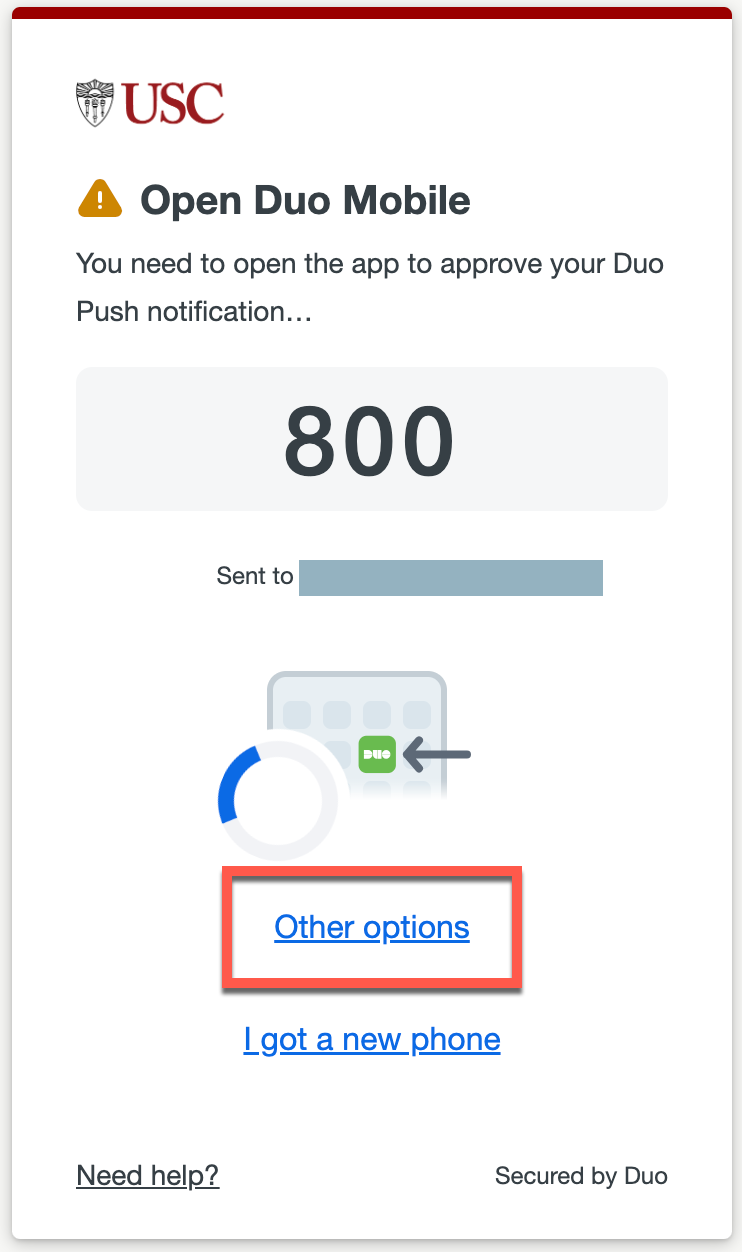
- Click Manage devices.
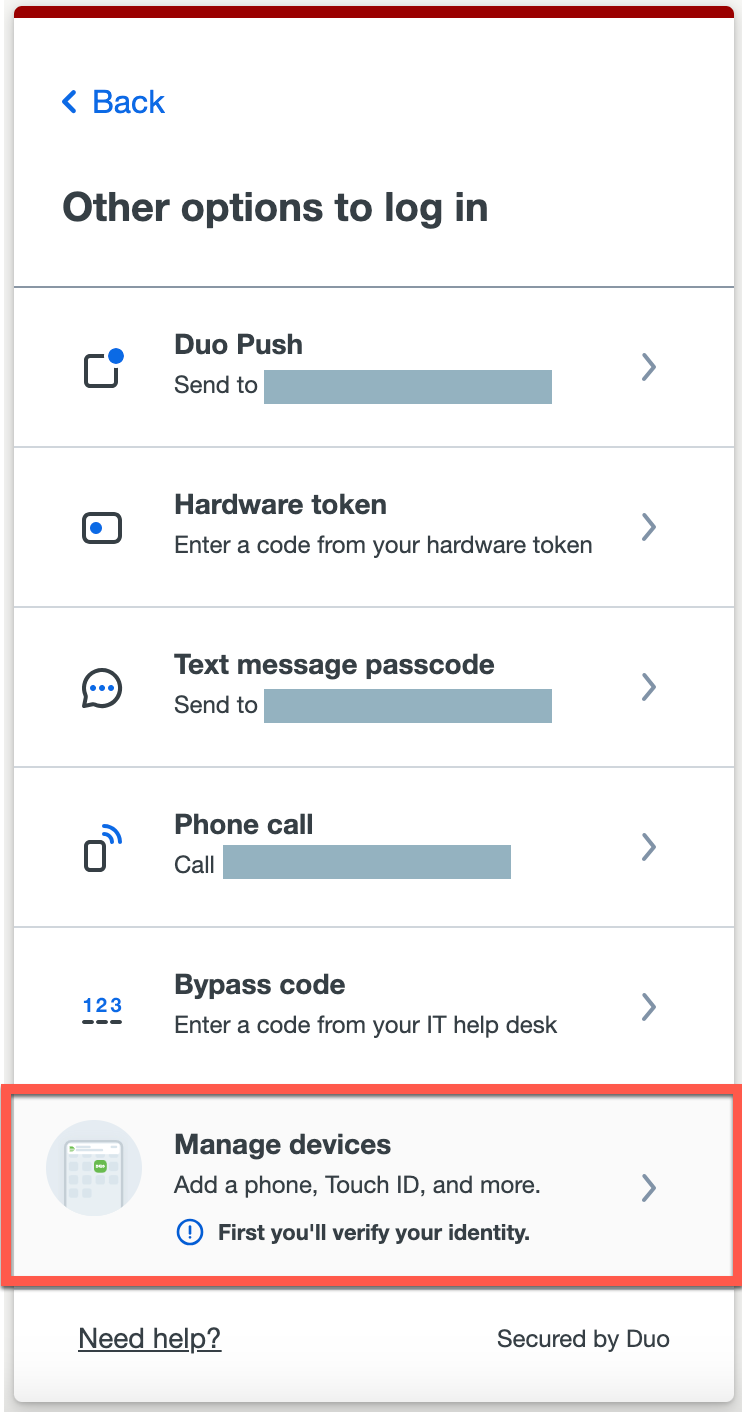
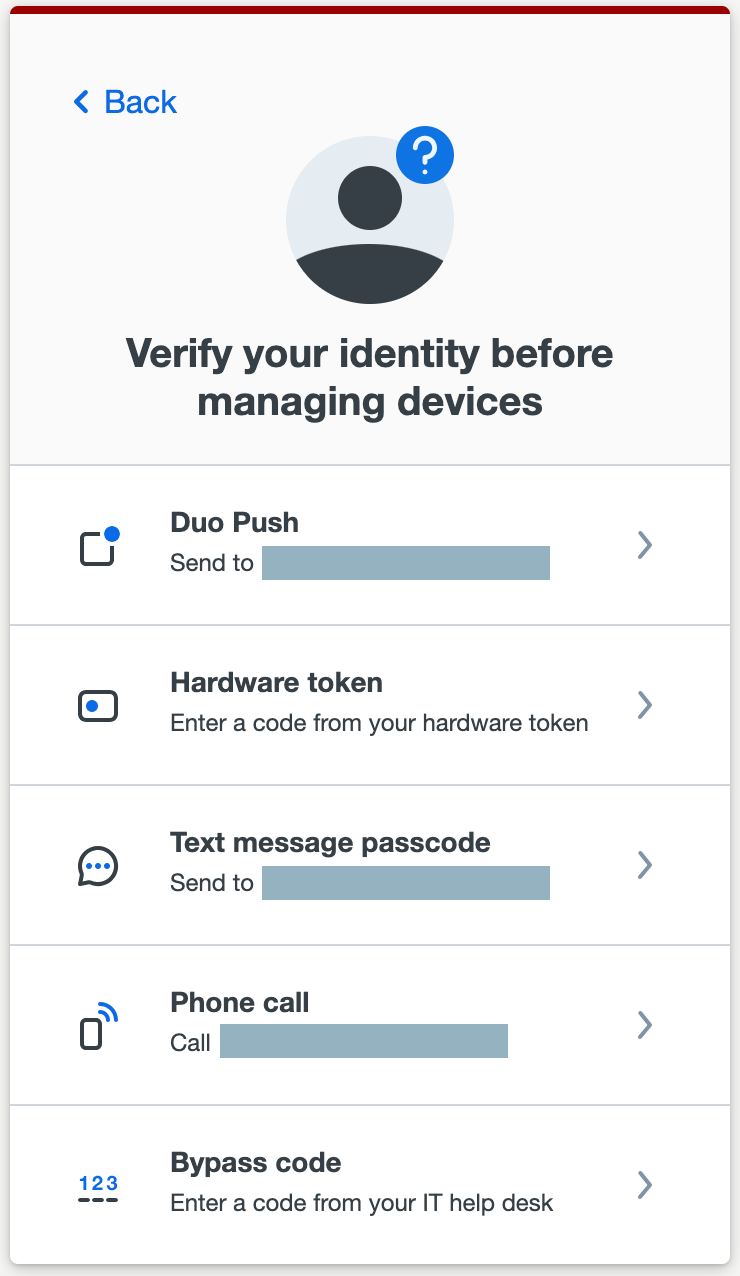
- Select a method and complete Duo authentication.
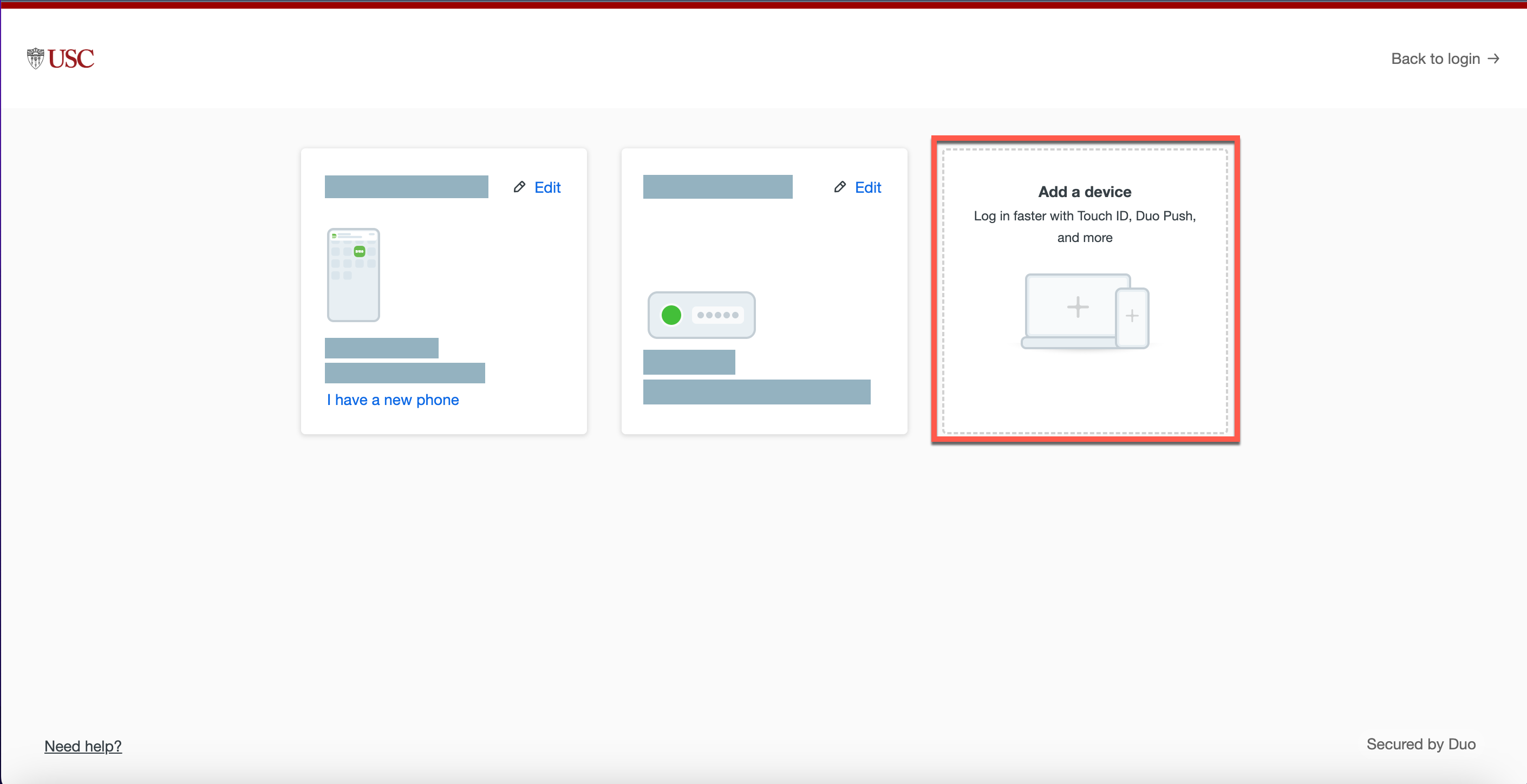
- The Duo Device Management page displays. Click Add a device.
- Click Windows Hello.

- Follow the prompts to add Windows Hello.

- The next time you sign into a USC service, you can use Windows Hello to complete Duo authentication. If it does not appear, click Other options and then select Windows Hello.
PIN troubleshooting
If you lose or forget your PIN, DTS cannot recover it. However, you can reset it:
Quick guide
- Click the Windows Start menu and select Settings.
- In the left menu, select Accounts.
- Click Sign-in options.
- Click PIN.
- Click I forgot my PIN.
- Click Continue.
- Select Include letters and symbols.
- The PIN must be at least 16 characters long. Create your new PIN, and click OK.
- Click OK.
- Your PIN is now updated.
Detailed guide (with screenshots)
- Click the Windows Start menu and select Settings.

- In the left menu, select Accounts.

- Click Sign-in options.

- Click PIN.

- Click I forgot my PIN.

- Click Continue.

- Select Include letters and symbols.

- The PIN must be at least 16 characters long. Create your new PIN, and click OK.

- Click OK.

- Your PIN is now updated.