Overview
Touch ID is a biometric feature you can use on Macs to sign into your computer account and to complete Duo authentication.
Setting up Touch ID
If you did not previously set up Touch ID, you can do so in your system settings:
Quick guide
- Click the Apple
 menu (upper left in the menu bar) and select System Settings.
- In the left menu, select Touch ID & Password. You may need to scroll down.
- Click Add Fingerprint.
- Follow the prompt to lift and rest your finger on the Touch ID key on your Mac keyboard. Once the prompt states that "Touch ID is Ready," you can click Done.
- Touch ID is now set up. You can deselect any toggles if there are functions for which you do not want to use Touch ID.
Detailed guide (with screenshots)
- Click the Apple menu (upper left in the menu bar) and select System Settings.

- In the left menu, select Touch ID & Password. You may need to scroll down.

- Click Add Fingerprint.

- Follow the prompt to lift and rest your finger on the Touch ID key on your Mac keyboard. Once the prompt states that "Touch ID is Ready," you can click Done.

- Touch ID is now set up. You can deselect any toggles if there are functions for which you do not want to use Touch ID.

Enabling Touch ID for Duo
Once Touch ID is set up, you can proceed to add it as an option in Duo.
Quick guide
- Go to https://account.usc.edu/2fa/configure.
- Do not complete Duo authentication when prompted. Instead, click Other options.
- Click Manage devices.
- Select a method and complete Duo authentication.
- The Duo Device Management page appears. Click Add a device.
- Click Touch ID.
- Follow the prompts to add Touch ID.
- The next time you sign into a USC service, you can use Touch ID to complete Duo authentication. If it does not appear, click Other options and then select Touch ID.
Detailed guide (with screenshots)
- Go to https://account.usc.edu/2fa/configure.
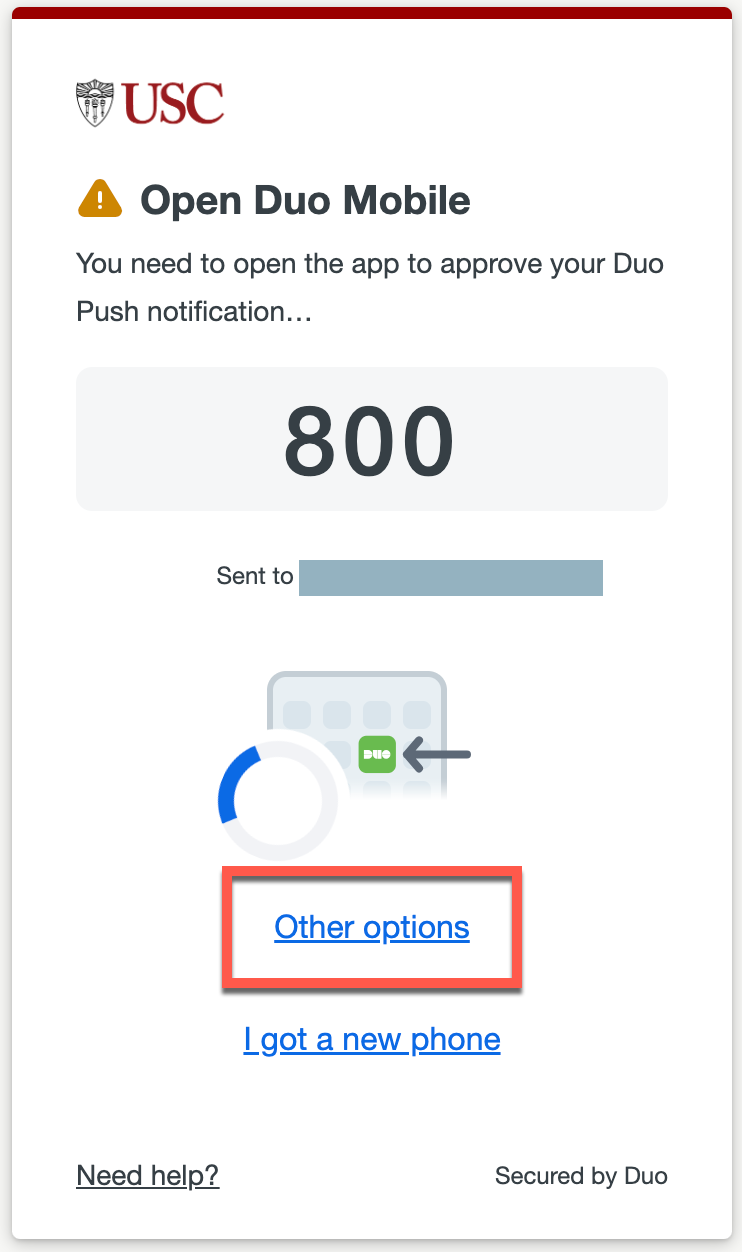
- Do not complete Duo authentication when prompted. Instead, click Other options.
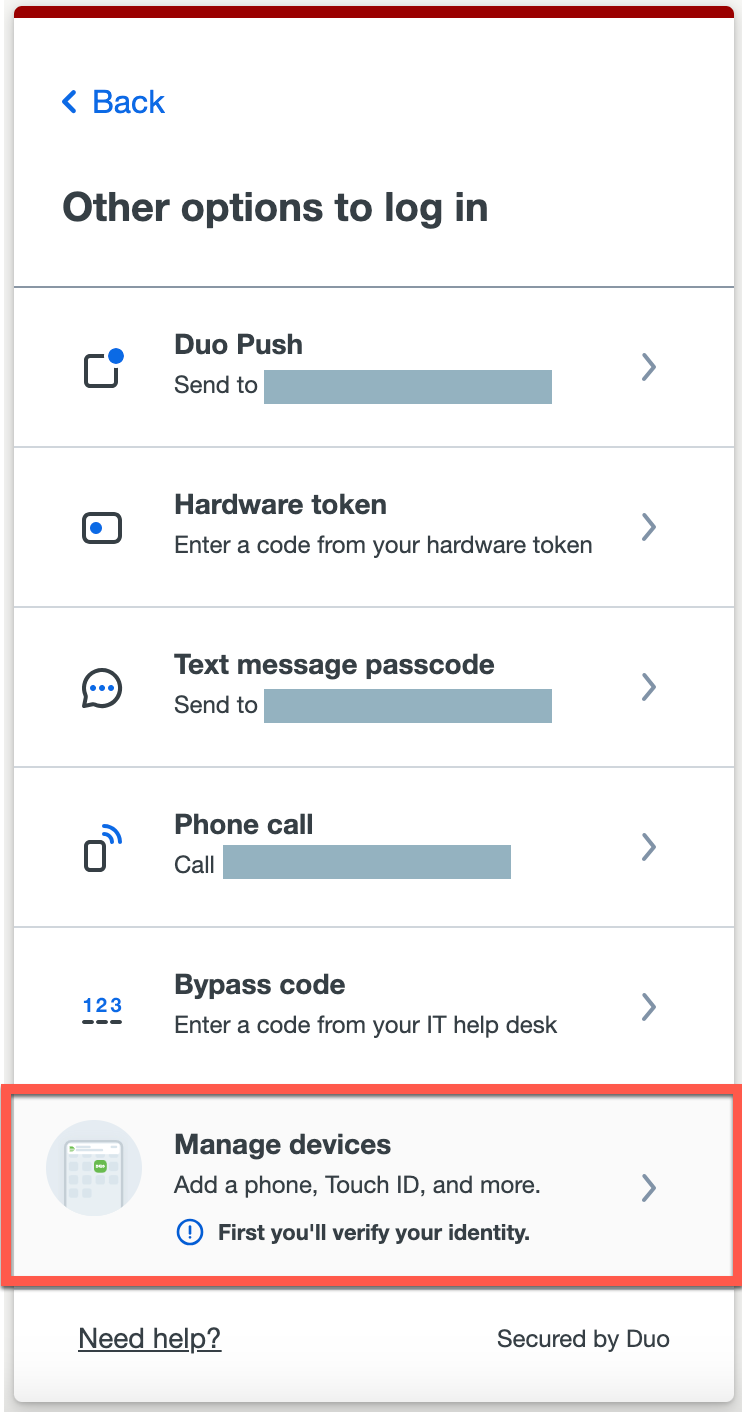
- Click Manage devices.
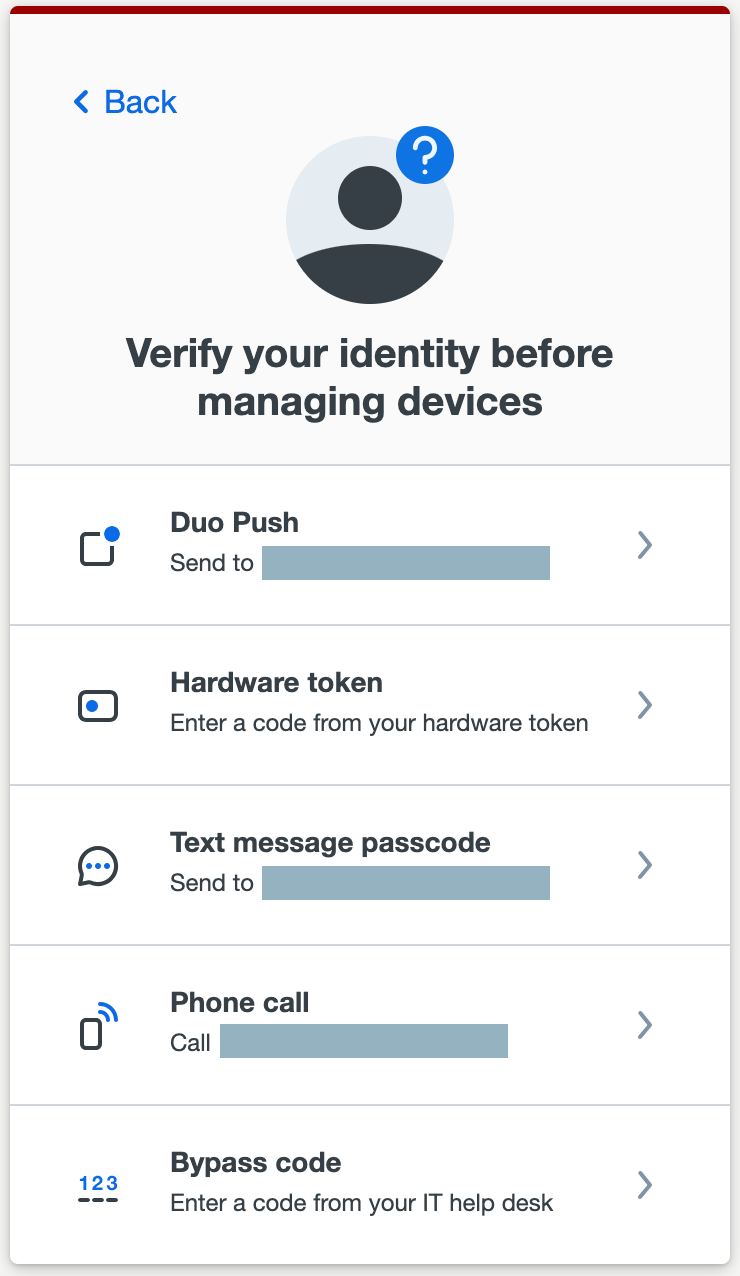
- Select a method and complete Duo authentication.
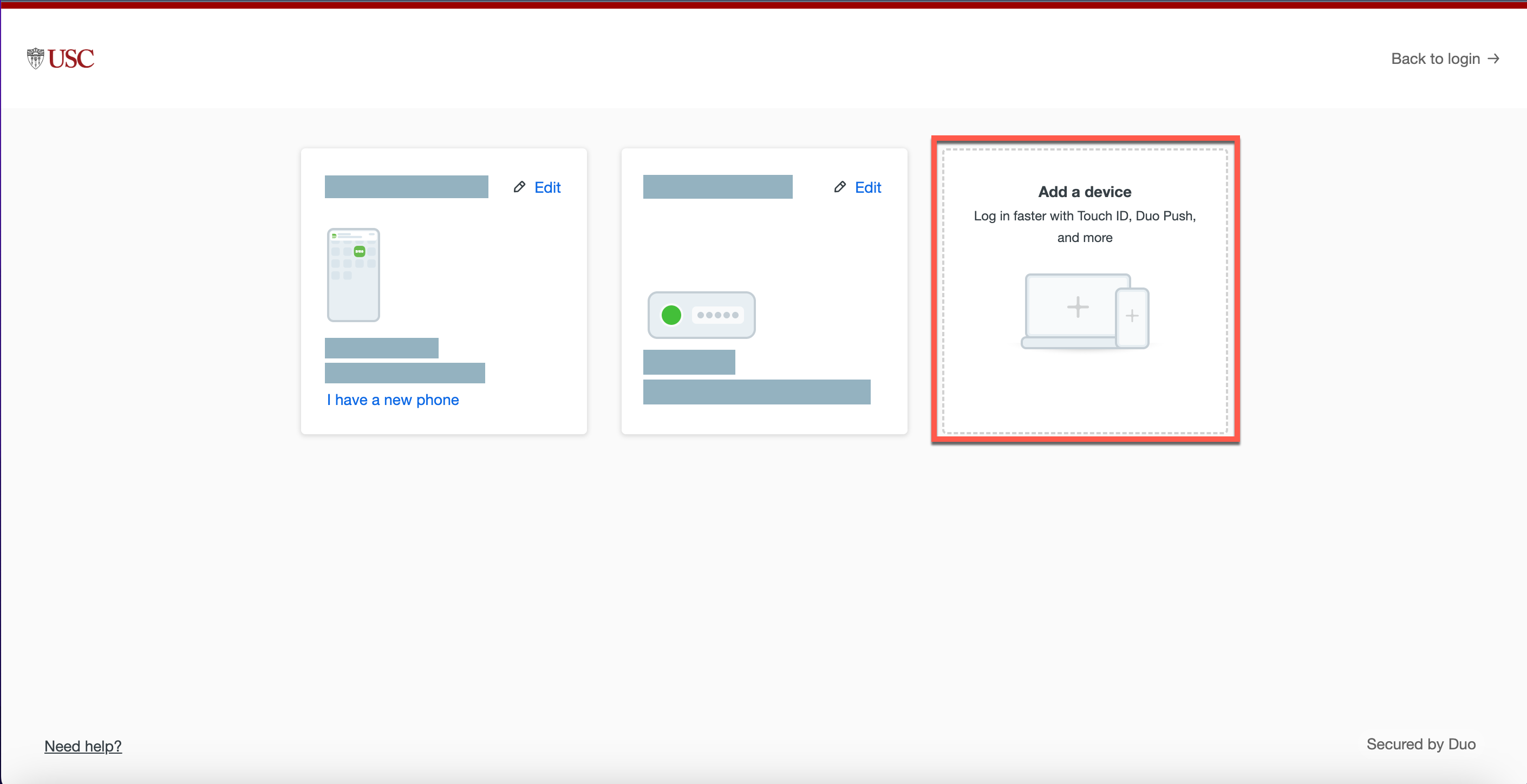
- The Duo Device Management page displays. Click Add a device.
- Click Touch ID.

- Follow the prompts to add Touch ID.

- The next time you sign into a USC service, you can use Touch ID to complete Duo authentication. If it does not appear, click Other options and then select Touch ID.