Overview
The standard version of Windows 10 retires on October 14, 2025, and Dornsife-managed computers must upgrade to Windows 11 before then.
If your computer is unable to upgrade, however, another option is to re-image your computer with Windows 10 LTSC 2019. Windows 10 LTSC (Long-Term Servicing Channel) is an older variant of Windows 10. It does not receive feature updates, but it meets University operating system requirements because Microsoft will continue to provide Windows 10 LTSC with security updates until January 9, 2029.
Why is this re-imaging necessary?
For more information about why Dornsife computers cannot remain on the standard Windows 10 system, as well as alternative options such as requesting an exception, refer to the following guide:
Preparing for re-imaging with Windows 10 LTSC 2019
DTS must schedule and perform the re-imaging. The re-imaging process will reset your computer to its factory state, meaning that all your files and software will be removed. It is critical to back up your computer files prior to the upgrade, and to save any license keys you will need to re-enter.
We recommend backing up your computer to Microsoft OneDrive or a USC-approved, encrypted storage device. Some important folders you may want to back up:
- Desktop
- Documents
- Pictures
- Downloads
- Anywhere else you save files
DTS can also provide assistance with the computer backup process.
Computer setup after re-imaging
First login
- Follow the prompts on the screen to select your region, keyboard layout, and wifi network if you are not connected to Ethernet.
- On-campus: To connect to USC Secure Wireless, use the following credentials:
- Username: Your USC NetID
- Password: Your USC NetID passphrase
- Off-campus: Connect to a secure home wifi network.
- You are prompted to sign in. Type your USC NetID in the following format:
- Click Next.
- Type your password, which is the same as your USC NetID passphrase, and click Sign in or Next.
- Windows proceeds to set up. Allow 15–30 minutes for the process. Once setup completes, the desktop appears.
- If the process is taking significantly longer than 30 minutes, contact DTS for assistance: we may need to manually configure your computer.
Complete the setup process
Once you are logged in, your computer will automatically begin installing default programs such as Microsoft Outlook and Office. You can now:
- Transfer files from your backup onto the computer again
- Re-install any non-DTS-distributed software and re-enter license keys
Additional changes after re-imaging
DTS-distributed software
If you currently have Microsoft Office 2019, be aware that it is also retiring with Windows 10 on October 14, 2025. As part of the re-imaging, you will receive Microsoft Office 2024 LTSC on this computer. This version of Office allows you to continue using and editing any files you saved in Office 2019.
Be aware that Windows 10 LTSC does not receive any feature updates, and it does not have access to the Microsoft Store. This means that you will not be able to use Company Portal (a replacement for Software Center) to install certain DTS-distributed software.
If you need software that is distributed through Company Portal (refer to our list, Software at USC Dornsife), you can contact DTS for assistance.
Computer administrator login
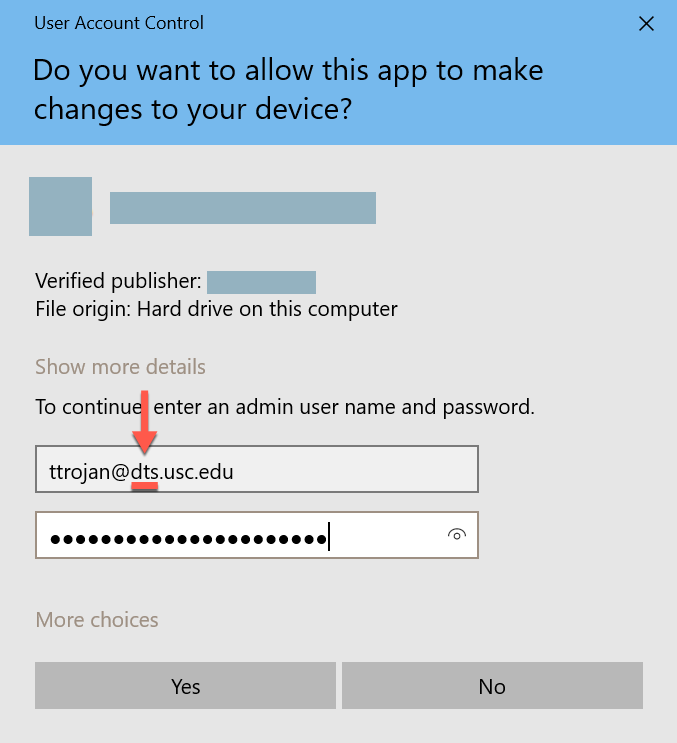
If you are installing programs or performing other administrative actions, you may be prompted to type an admin user name and password. Type your credentials as follows:
- Email address: Your USC NetID@dts.usc.edu
- For example, if your USC NetID is ttrojan, type ttrojan@dts.usc.edu
- Password: Your USC NetID passphrase